Share Publications with FlowPaper Cloud
Sharing PDF documents directly can lead to slow loading and limited visibility into reader behavior. FlowPaper Cloud optimizes publications for fast web delivery and makes them easier to share across channels.
Video tutorial
How to share PDF documents online
A few simple steps let you upload and share your publication.
1) Select a PDF to upload
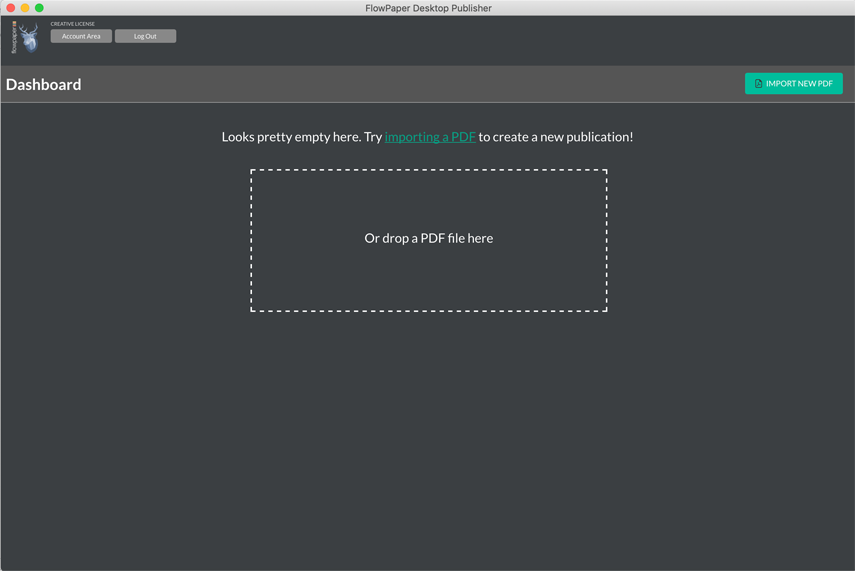
Start the FlowPaper App in your browser or install the FlowPaper software.
Select the document you want to share by clicking Import new PDF in the top-right corner, or reopen an existing publication.
2) Style and preview the flipbook
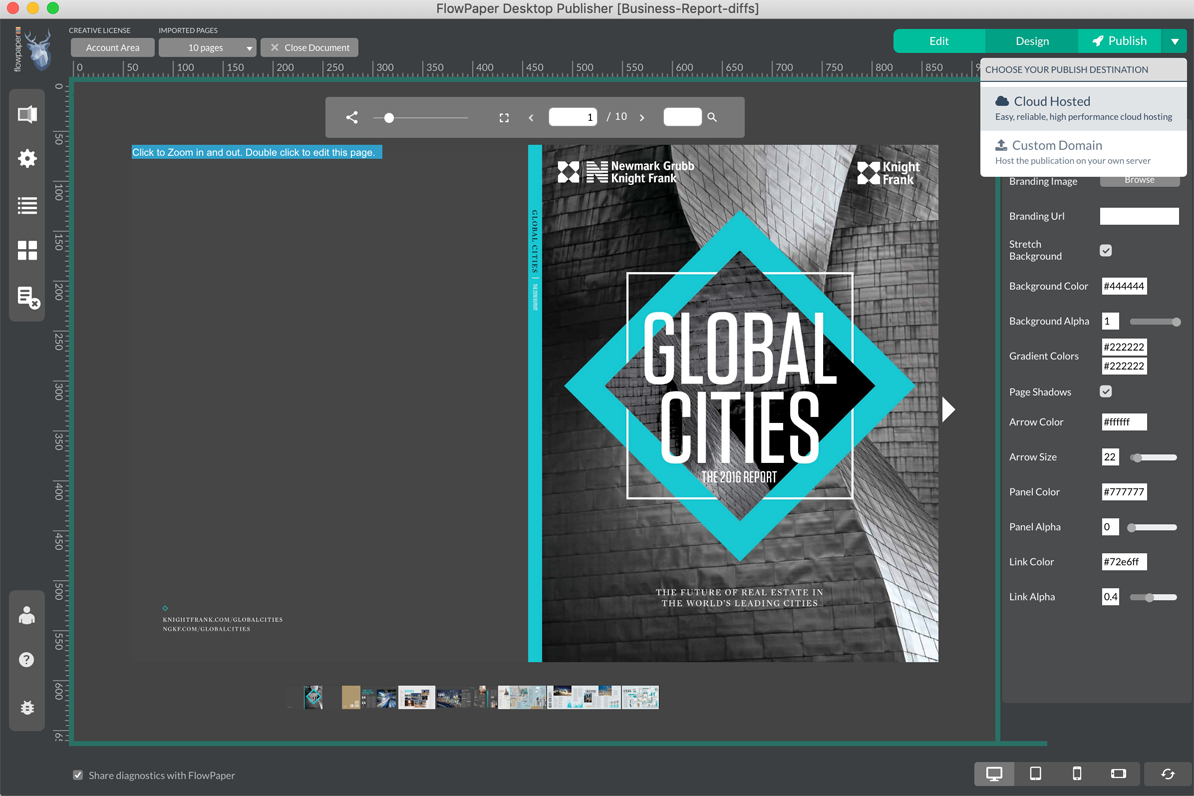
You can use the Zine template to present the document as a flipbook.
After import, the publication preview appears in the publisher and can be customized before publishing.
When ready, click Publish in the top-right corner and choose Cloud Hosted.
3) Upload the publication
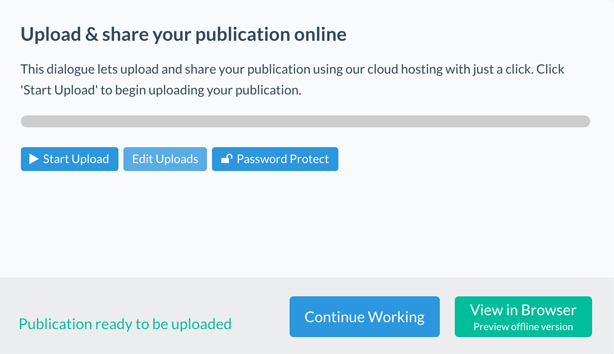
Once the publisher finishes preparing the files, click Start Upload.
After upload, use View Online to verify that everything looks correct before sharing or embedding.
You can share directly from the online viewer using the share icon in the top banner. Sharing options include platforms such as Facebook, X, and LinkedIn.
You can also choose the landing page for a shared link by navigating to the desired page before opening the share menu.
If preferred, copy the publication URL from the publisher and paste it directly into a post on your chosen social platform.
4) Embed the flipbook on a website
You can also embed the publication on a webpage.
<iframe style="border: 0px;"
frameborder="0"
height="400"
width="500"
src="http://YOUR_UPLOADED_PUBLICATION" allowfullscreen>
Your browser does not support IFrames.
</iframe>
Replace YOUR_UPLOADED_PUBLICATION with the URL you received after upload and adjust the width and height as needed.
Analytics reminder
Enable FlowPaper analytics before publishing if you want to track reader engagement.