How to Create and Reuse Flipbook Style Templates
If you regularly publish flipbooks, style templates in FlowPaper help you save time and keep branding consistent. Reuse the same layout, colors, and settings across multiple interactive PDF documents.
Step 1: Open Your Flipbook in FlowPaper
Open an existing flipbook or upload a PDF to create a new one.
Step 2: Customize Your Design
- Adjust your layout, colors, and settings
- Apply any design elements you want to reuse across future flipbooks
Step 3: Save Your Template

- In the left-hand menu, go to Styles
- Click Save Current Style
- Enter a name for your template and save it
Step 4: Apply Your Template to a New Flipbook
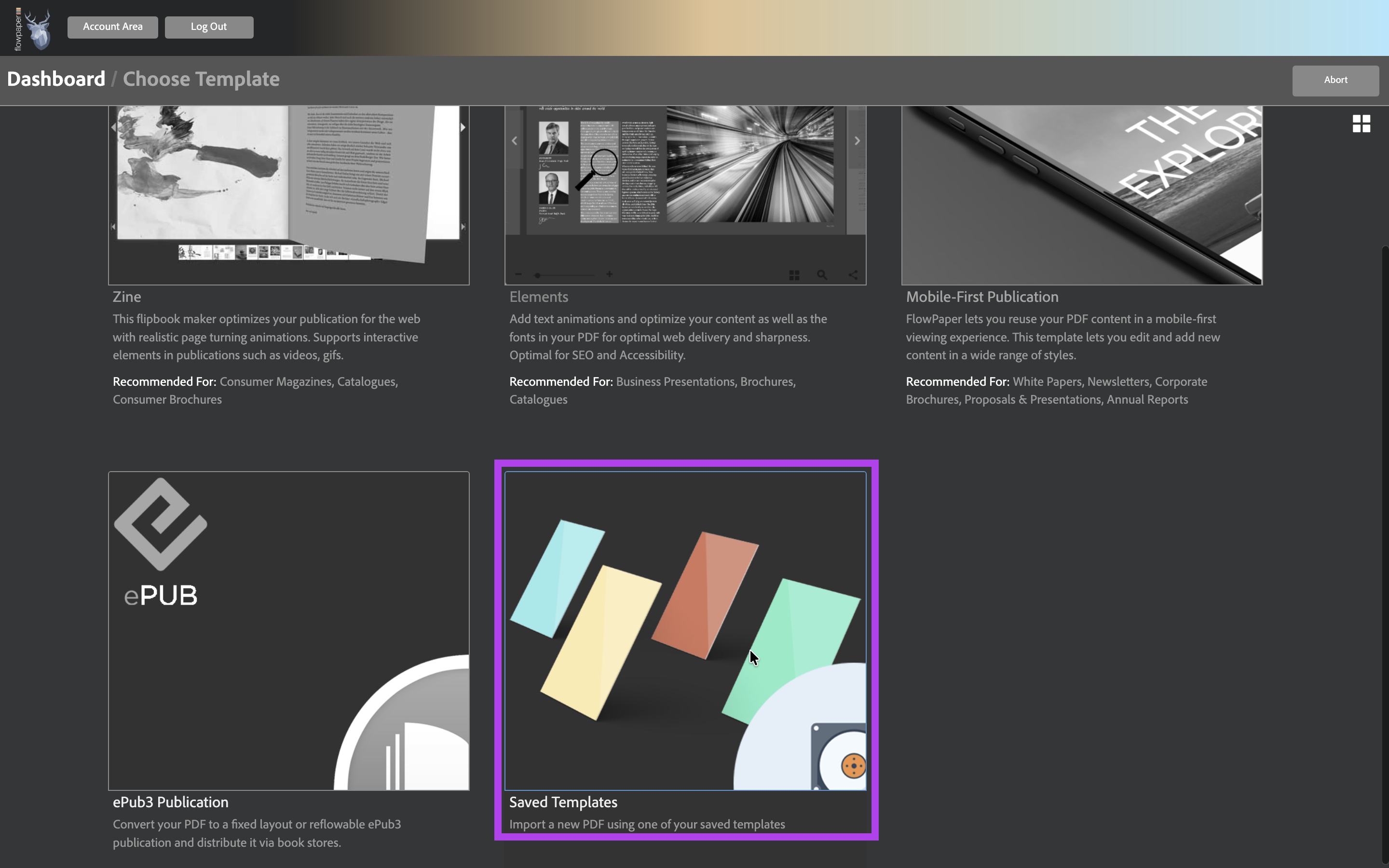
- Open or upload a new flipbook
- Select your saved template
- Apply it to reuse your design and settings instantly
Tips for Using Templates
- Use templates to maintain consistent branding across all publications
- Create different templates for presentations, catalogs, and reports
- Update templates over time as your design evolves
Frequently Asked Questions
Can I update a saved flipbook template?
Yes, you can update your style templates in FlowPaper as your design evolves.
Can I use different templates for different types of publications?
Absolutely! Create templates for catalogs, presentations, reports, and more.
Will my template affect the original PDF?
No, templates only style the viewer—your original PDF remains unchanged.
Ready to save time and keep your branding consistent?
Create a free FlowPaper account or explore more guides to get started with interactive PDF templates.