Add Download Protection to Publications
Protecting online PDF content is never absolute, but FlowPaper provides multiple controls that make copying, indexing, and unauthorized reuse more difficult.
Video tutorial
Disable copy and print
Both FlowPaper Elements and FlowPaper Zine support disabling text copy and print.
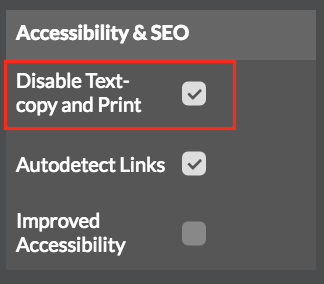
You can find these settings in the left panel of Desktop Publisher. After changing them, click Apply Settings to reload the preview.
Enable download protection and reduce indexing
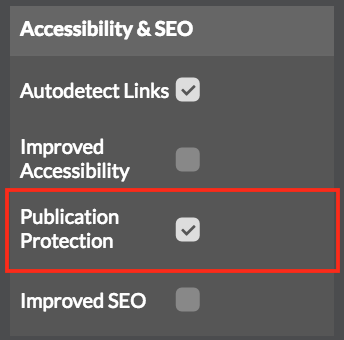
If you want to make indexing and copying harder, enable download protection in the Elements viewer.
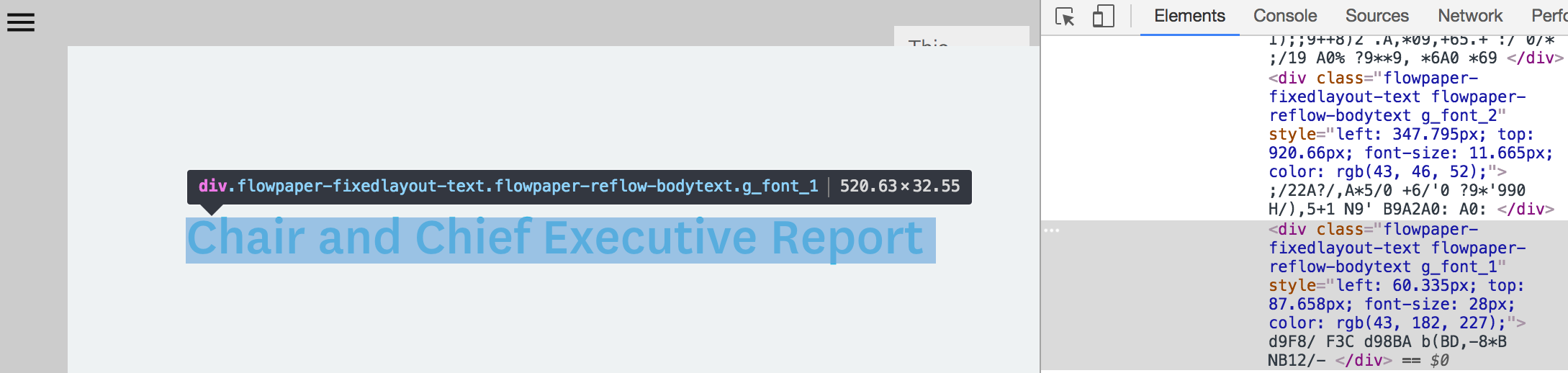
This mode obfuscates text and font mapping to reduce straightforward extraction by crawlers and copy tools.
How text obfuscation works
In unprotected mode, text appears as readable HTML in the rendered publication.
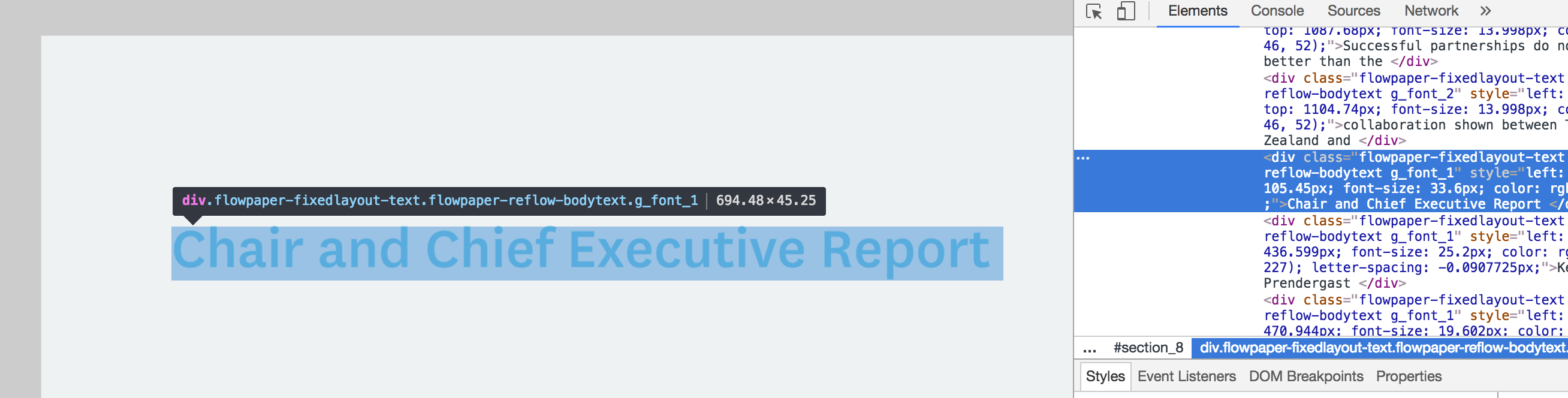 With protection enabled, FlowPaper remaps glyphs and text output so visible content stays correct for readers while the underlying extracted text becomes randomized per document/font combination.
You can also test a protected publication demo.