How to Animate Text, Headers, and Pages in a PDF
Static PDFs are hard to engage with — especially when you want to create interactive brochures, presentations, or online publications.
With FlowPaper, you can convert your PDF into an interactive HTML5 document and add animations to pages, text, and individual elements — without redesigning your content.
FlowPaper’s Elements template converts your PDF into individual, editable objects (text, headings, images), allowing you to animate and control each part of your content.
Video tutorial
Animation types in FlowPaper
You can apply animations on three levels:
Page level — animate everything on a specific page
Text styles (global) — animate all headings (H1–H4) or body text across the document
Element level — animate a specific element (e.g., one heading or paragraph)
Step-by-step: How to add animations to a PDF
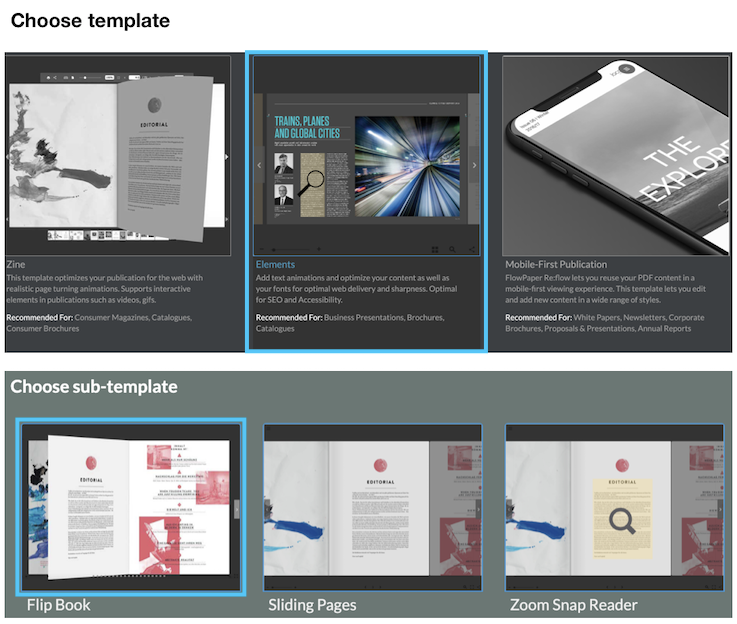
1) Import your PDF
1) Import your PDF
2) Select the Elements template
3) Enable shape animations in the import settings
2) Animate a page
Page-level animations work well for storytelling or presentations.
1) Select a page
2) Click Animate in the left panel or use “Select to Animate” on the page
3) Choose an animation type
You can also configure animations for shapes and illustrations.
To remove animations from a page, click Remove Animations.
3) Animate all text (headers and body)
1) Open the Text animations panel (right-hand side)
2) Select a text type (Body text, H1, H2, etc.)
3) Choose an animation
4) Click Apply settings
This applies the animation across all pages for that text type.
For best results, use subtle animations for body text to maintain readability, and stronger effects for headings or key visuals to create emphasis.
4) Animate individual elements
1) Enter Edit mode
2) Click Edit, or
3) Double-click the top area of the page
4) Select an element (text, heading, etc.)
5) Apply an animation
Animations can significantly improve how your content is experienced — helping guide attention, highlight key messages, and make your publication feel more dynamic.
When used thoughtfully, animations can turn a simple PDF into a more engaging and memorable experience for your audience.
Next steps
Add links to turn your document into a clickable experience