Introduction to the Mobile-First Template
This tutorial covers the four core building blocks behind the Mobile-First template. It is the first step toward understanding how to work with a reflowable publication.
The key building blocks are:
- Pages
- Blocks
- Columns
- Elements
What is the Mobile-First template?
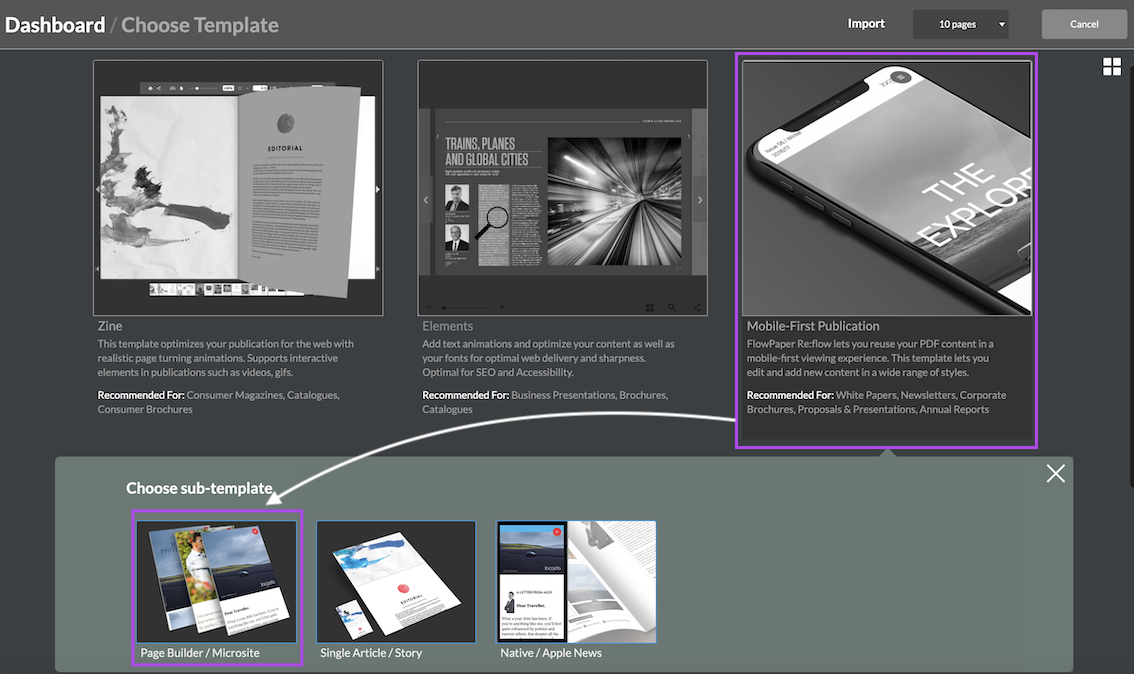
The Mobile-First template is similar to a micro-website and is published as HTML5. It behaves like a reflowable site, which means your content is not fixed in place as it is in a static PDF.
The template imports PDF content, structures it as web content, and adapts the layout to the reader’s screen size.
Its structure is hierarchical: pages contain blocks, blocks contain columns, and columns contain elements such as text, images, and videos.
Pages
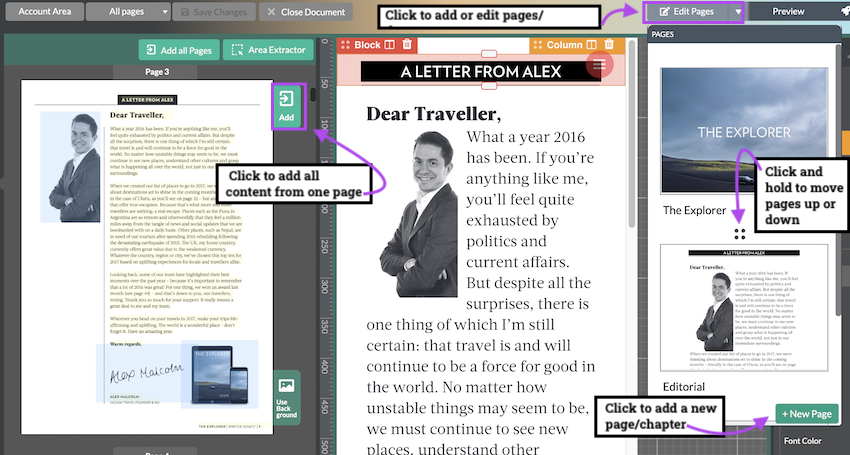
The base of the template is composed of pages. Use the Edit Pages option in the upper-right corner to add, label, reorder, and rename pages.
To edit a specific page, open the Edit Pages dropdown and select the page you want to work on.
Blocks
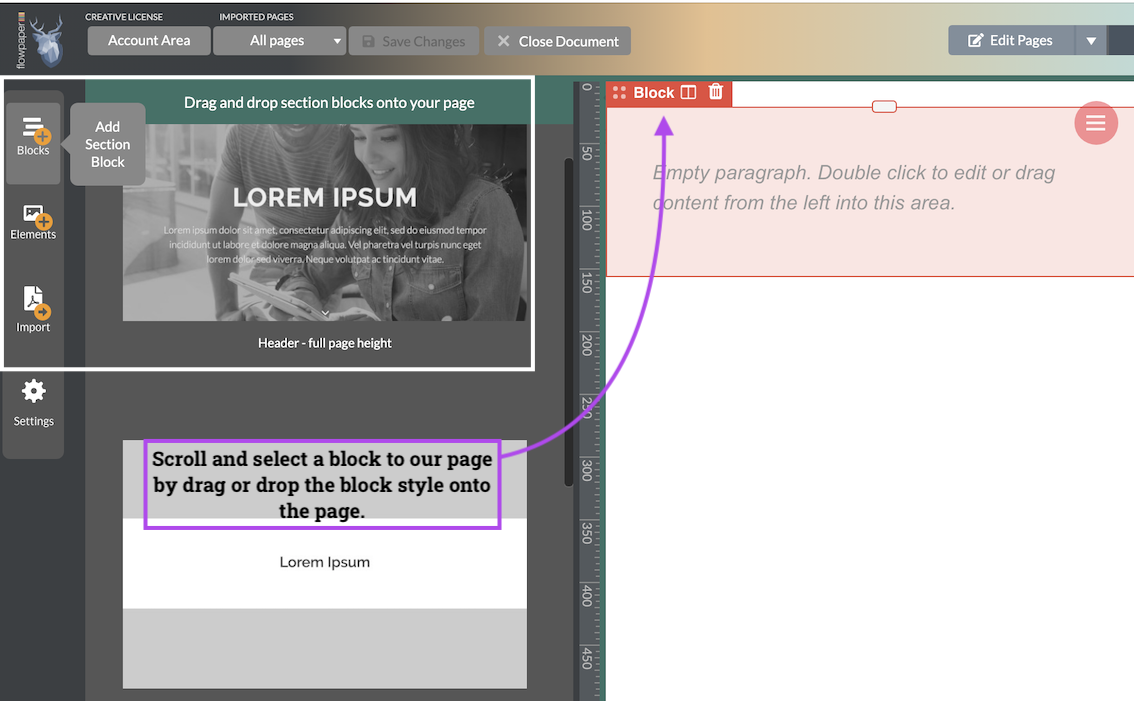
Each page needs at least one block to hold content. A block defines the overall behavior and design rules of a section.
To add a block, use the Add Block panel on the left side. You can choose from multiple block styles to speed up your design process.
Inside a block, you can add columns and adjust column widths by dragging the center handle.
The block also controls defaults such as typography, animation, background, and padding.
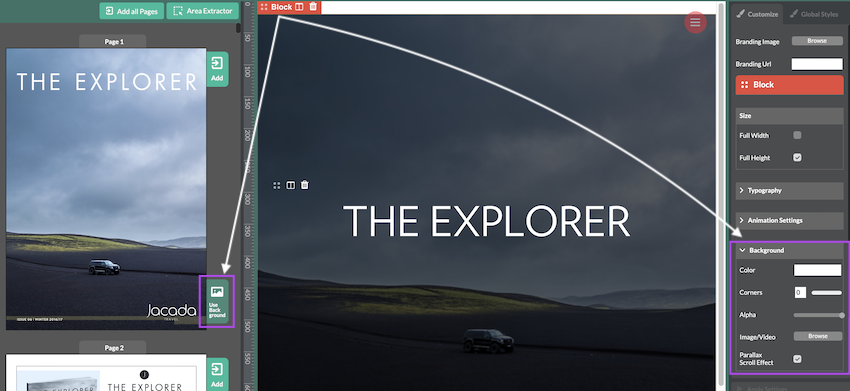
You can apply a background to a block by selecting the correct block, then using the green Use background option on the page where the source image exists. You can also import a background image from your computer in the right-side background settings.
The same panel includes background styling options such as parallax. For best results with parallax, keep the block at full height.
Columns
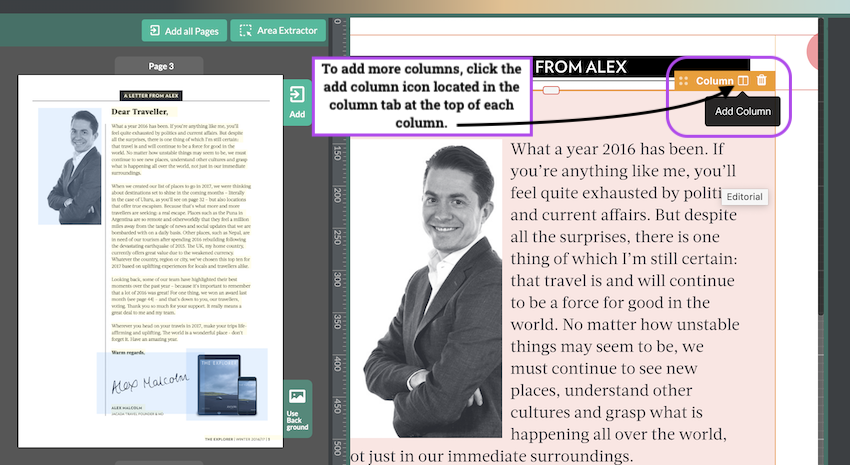
Columns create the internal structure of each block, similar to magazine layouts. You can use multiple columns in a single block.
One quick way to add content is to double-click an item in the source pane. It will be imported into the selected column. If no column is selected, the content is added in a new block at the bottom of the page.
You can also import all content from a page by clicking the green Add button at the top of each source page. From there, choose whether to import as static content or in reflow format.
Each column can override defaults from the parent block, including text behavior, spacing, and background settings.
Elements
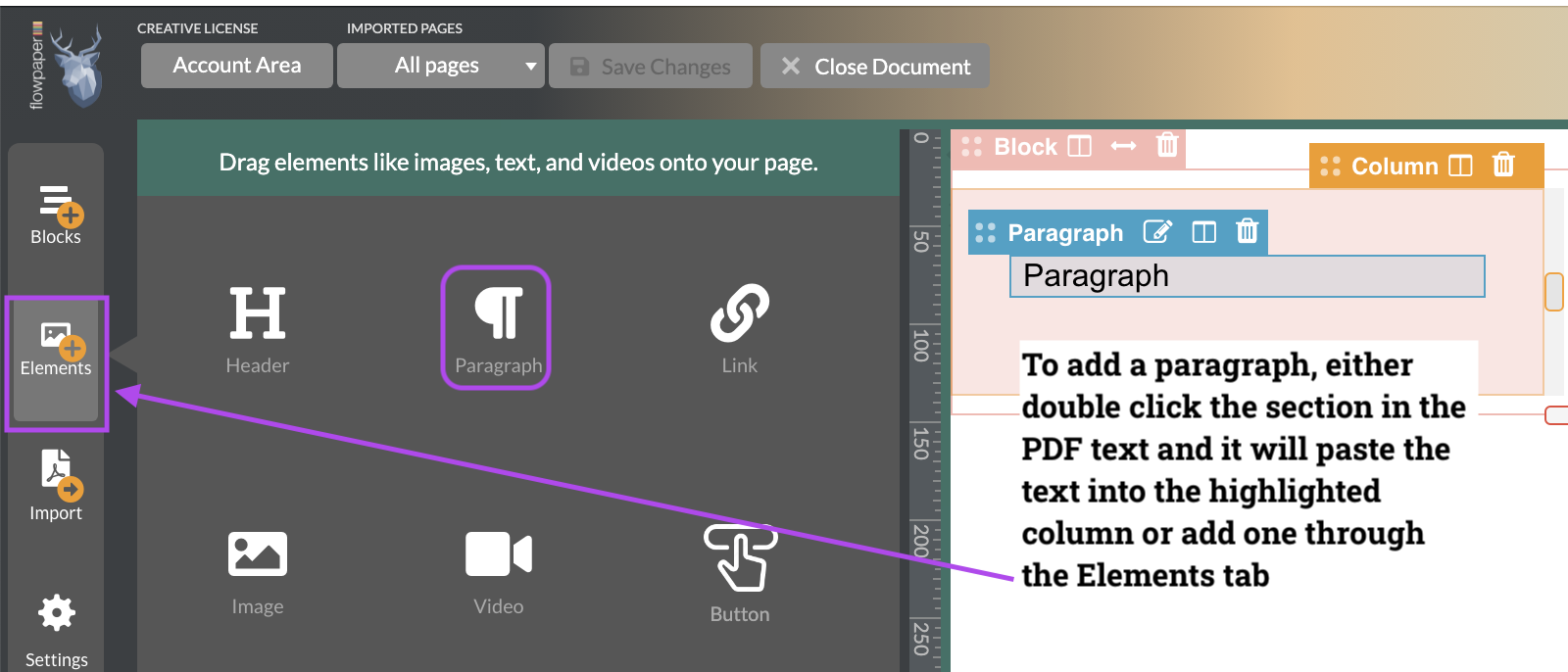
Elements are the individual pieces of content inside columns, such as text, images, links, and illustrations.
You can add elements by double-clicking source content, using the green Add button on each PDF page, or using the Add Elements menu on the right-hand side.
Test for different screen sizes
If you want to see how content reflows on different devices, use the device emulator at the bottom of the editor.
This mode also allows you to refine layouts for the device types your readers are most likely using.
To preview in a browser, click Publish in the upper-right corner, choose Cloud hosting, and then click View in browser when publishing completes.