Convert PDF Documents to HTML5
Converting PDF content to HTML5 for flipbooks or web publications can be done in several ways. This guide explains the most common approaches and how to evaluate their output quality.
The “fake it until we make it” approach
Some tools claim to convert your content to HTML5 but instead just convert each PDF page into a high-resolution JPEG or PNG. This often looks acceptable at first, but text becomes blurry and pixelated when zooming in.
This approach can also increase page weight and loading times.
To verify what a provider is doing, zoom deeply into text and inspect the publication source. If each page is just an image, text and graphics are being flattened together.
The middle way: canvas rendering
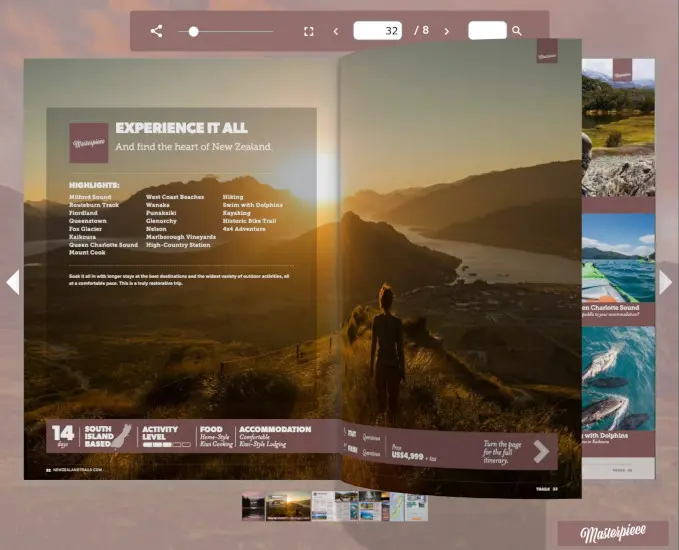
HTML5 canvas rendering draws text and images to a canvas at an appropriate resolution for the current zoom/device. The source text and images are separate before rendering but become a composed output on screen.
Benefits of this approach:
- Stays sharp at deep zoom levels and across devices
- High visual accuracy due to pixel-precise rendering
- Works well with 3D presentation effects
FlowPaper Zine uses this approach to generate sharp flipbooks with immersive page effects.
All the way: real HTML5

Some tools, such as FlowPaper Elements, convert PDF text and structure into real HTML5 elements, including heading hierarchy and semantic structure.
Benefits of real HTML5 conversion:
- Better indexability in search engines
- Sharp display across zoom levels and screen sizes
- Improved compatibility with screen readers and accessibility tools
To convert documents this way in FlowPaper, use the Elements template when importing your PDF.
Convert large documents from PDF to HTML5 with command-line tools
FlowPaper supports split-document loading, where large PDFs are divided into one file per page and only visible pages are loaded. This reduces bandwidth usage and improves load time.
To split pages manually, you can use PDFTK:
pdftk.exe Paper.pdf burst output Paper_%1d.pdf compress
You should also generate JSON metadata so search works even when all pages are not downloaded. You can create this with PDF2JSON:
pdf2json.exe Paper.pdf -enc UTF-8 -compress -split 10 Paper.pdf_%.js
Then configure the viewer to use split files:
$('#documentViewer').FlowPaperViewer({
  config: {
    PDFFile: 'pdf/Paper_[*,2].pdf',
    JSONFile: 'pdf/Paper.pdf_{page}.js',
    RenderingOrder: 'html5'
  }
});