Add Expanded Content Sections
This guide shows how to add expanded content in FlowPaper so readers can open additional text and media from a page using a read-more tab.
Video tutorial
What is expanded content?
Expanded content is available in the Elements template. It lets you add responsive extra content to a PDF page even when there is no available white space.
In the published viewer, this appears as a Read More style tab for that page.
Add expanded content to a page
1) Enter edit mode and open expanded content
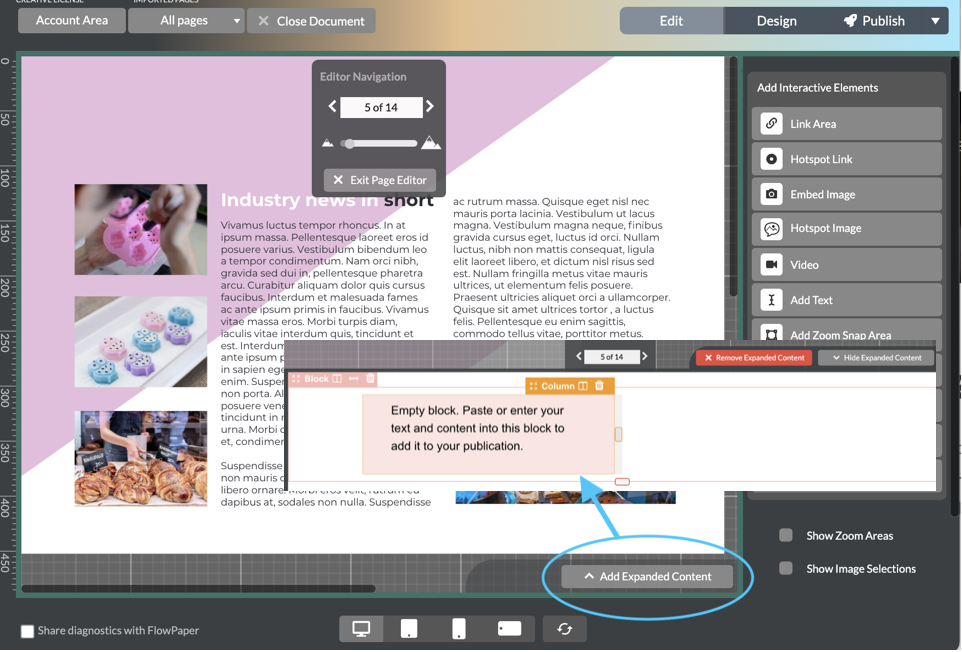
Open your PDF in the Elements viewer and enter edit mode by double-clicking the page or clicking Edit in the top bar.
Click the expanded content tab located at the bottom-right area under the publication.
2) Add and format your content
A one-column editor opens where you can paste text and format it using the floating toolbar.
Highlight text sections and apply the formatting you want.
3) Add columns and interactive elements
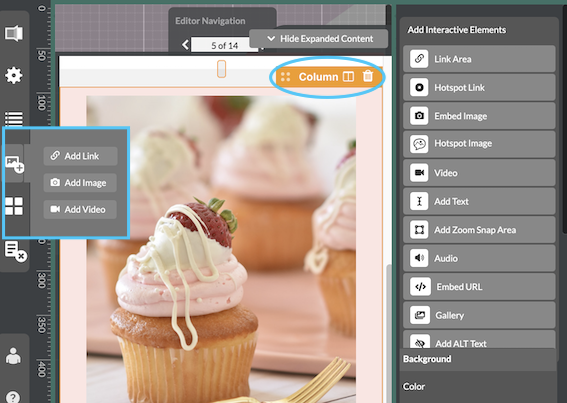
To add columns, activate a column tab and click the pages icon on the column bar to create a new column.
To add video, image, or link elements, activate the target column, then choose Add interactive element and follow the dialog prompts.
Links can be added in two ways:
- Inline links for text snippets
- Area links for highlighted text or images via the floating toolbar
Link actions can target websites, email addresses, phone calls, internal pages, or JavaScript actions.
4) Preview, update, or remove
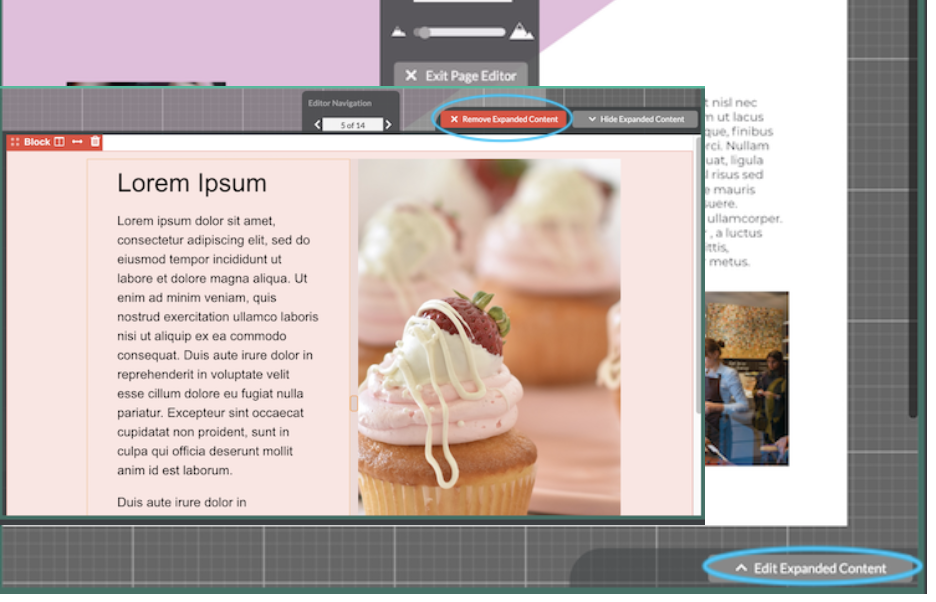
Return to design mode and go to the edited page to test the green read-more tab.
To update or remove the expanded content, reopen edit mode and use the expanded content tab.
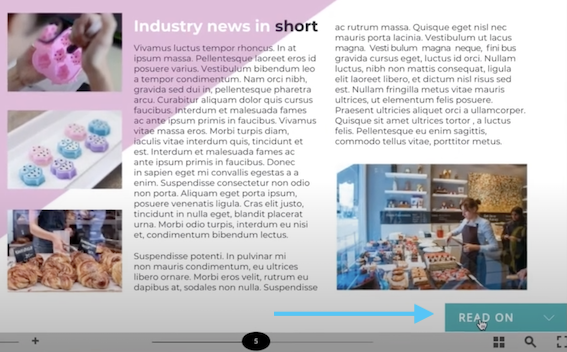
In published mode, readers see a green Read on tab at the bottom of the page.